How to Find Diseases That Share Genes: Comorbidity Analysis in GeDiPNet
Two diseases often "run together" in patients — not by coincidence, but because they share underlying genes or biological pathways. GeDiPNet's comorbidity analysis tool lets you test that directly: pick a set of diseases (or genes) and see exactly how related they are, backed by real shared-gene data.
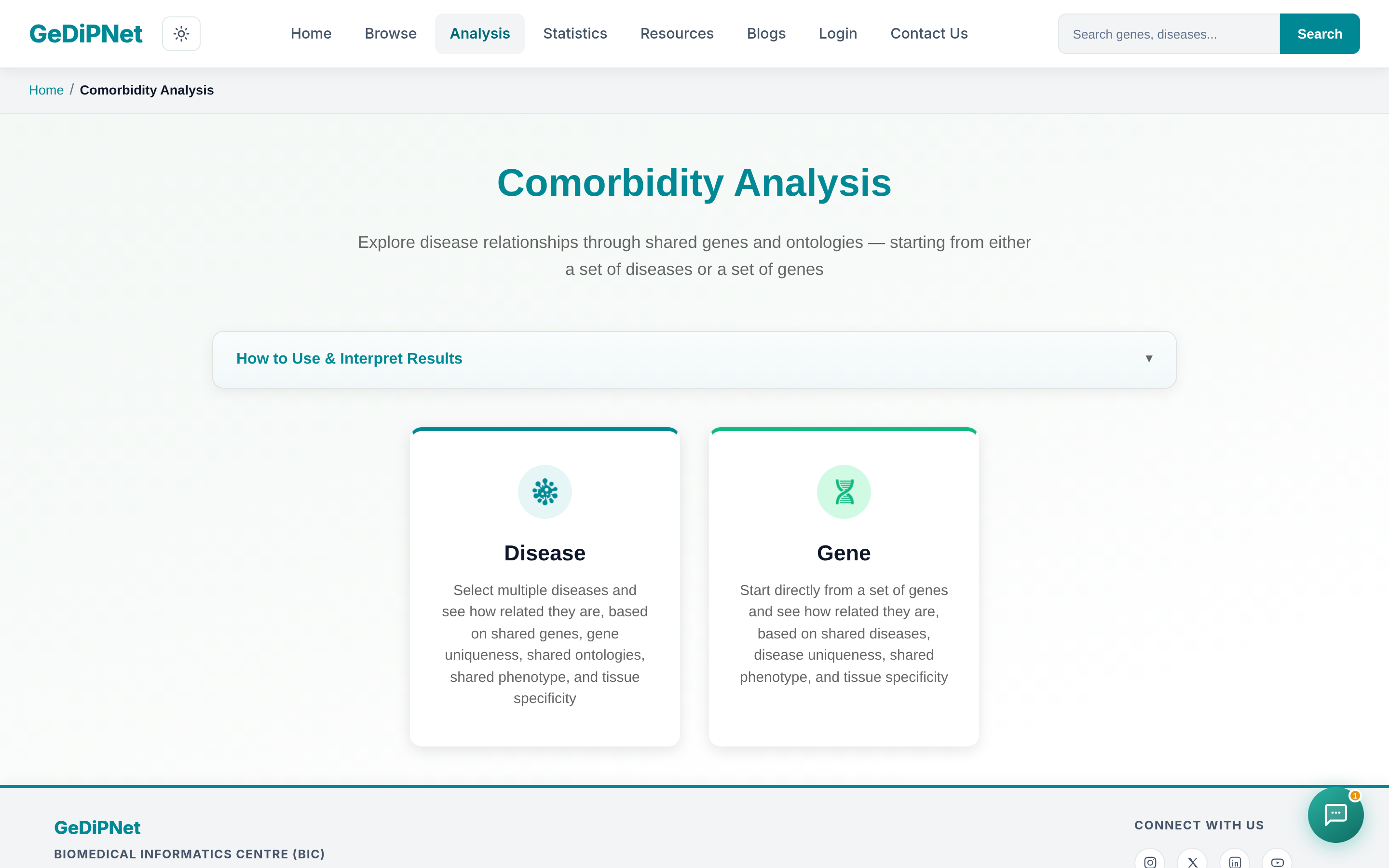
How to run a comorbidity analysis on GeDiPNet
- Go to the Comorbidity Analysis hub and choose your starting point: a set of Diseases or a set of Genes.
- Search for names and move them into the "Selected" box using the → button (or double-click); use ← to remove one. Click Load Example if you want to try it with sample data first.
- Pick a dataset: Curated (faster) or Curated + Text Mining (broader coverage, but slower to compute).
- Submit to get pairwise comorbidity heatmaps for every combination in your selection.
How to read the results
Each pair you selected gets scored across several tabs:
- Shared Genes (Disease mode) / Shared Diseases (Gene mode) — how much overlap exists between the pair, relative to whichever one has fewer.
- Gene Uniqueness / Disease Uniqueness — weights that overlap by how distinctive the shared genes or diseases are; ones linked to very few other diseases or genes count for more.
- Shared Ontologies (Disease mode only) — overlap of GO terms linked to each disease's genes.
Hover any heatmap cell to see the exact score for that pair, and use the Download image button on each tab to export it as a PNG for a paper or presentation.
Two ways to start
| Mode | Start from | Best for |
|---|---|---|
| Disease mode | A list of disease names | You already suspect two or more diseases are related and want to see the shared genes and ontologies behind that link. |
| Gene mode | A list of gene symbols | You have a gene list (e.g. from your own experiment) and want to see which diseases it connects to. |
Not sure comorbidity analysis is the right fit for your question? See Which GeDiPNet Analysis Tool Should I Use?, or just ask GeDiPNet's chat assistant in plain language. To see comorbidity analysis used alongside GeDiPNet's other tools on a real question, read our complete case study.
Have a comorbidity question the tool doesn't answer, or a dataset you'd like to see added? Reach out via Contact Us.